¶ Samples & Bubbles
Patchworld's sample system revolves around Bubbles — floating orbs that hold audio. You can load pre-existing audio files into them, or record new sounds directly in VR using the Microphone and Bubble Recorder.
¶ The Three Blocks
| Block | Thumbnail | Role |
|---|---|---|
| Bubble | 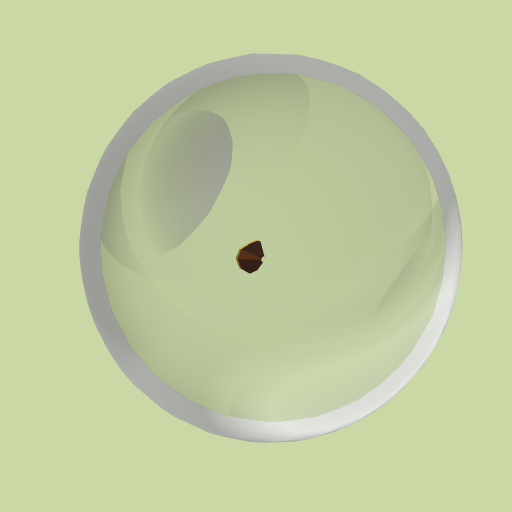 |
Holds one audio sample. Hit to play, touch to stop. |
| Bubble Player | 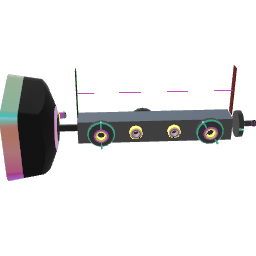 |
Connects a Bubble to your patch (Play/Stop jolts, pitch, gain, cursor). |
| Bubble Recorder | 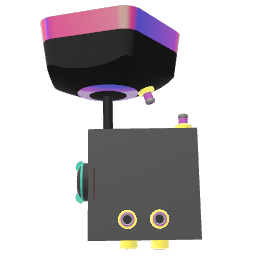 |
Records any audio stream into a Bubble. |
These are complemented by two microphone blocks:
| Block | Thumbnail | Role |
|---|---|---|
| Microphone | 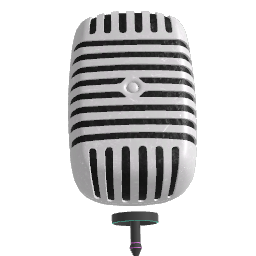 |
Outputs the device microphone as an audio stream. |
| Midi Mic | 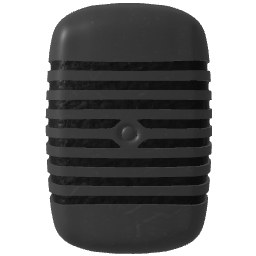 |
Outputs detected pitch (MIDI note) and amplitude from the microphone. |
¶ Recording Your Voice
Here is the basic setup to capture your microphone into a reusable sample:
- Spawn a Microphone block and a Bubble Recorder.
- Connect the Microphone's Audio output → Bubble Recorder's Audio input.
- Drop an empty Bubble into the Bubble Recorder receptacle (or leave it empty — a Bubble will be created automatically on first recording).
- Send a Jolt to the Recorder's Record input (e.g., from a Button or Toggle Jolt) to start recording.
- Send a Jolt to Stop when done. The audio is saved into the Bubble.
[!TIP]
The Microphone block supports two modes. In Spatial mode (default), volume attenuates with distance from your head — hold it like a real mic. Use the Radial Menu to switch to 2D mode for a constant-volume signal.
¶ Playing Back a Sample
Once you have a recorded (or loaded) Bubble:
- Simple playback: Hit the Bubble to play. Touch to stop.
- Patchable playback: Place the Bubble in a Bubble Player receptacle, then connect Play/Stop jolts and the audio stream output to a Speaker.
¶ Loading an audio file
Select a Bubble, open the Radial Menu → More → Load to browse your device for .wav or .ogg files.
¶ Exploring & Scrubbing a Sample
The Bubble Player has a Cursor stream input that directly drives the playback position (in seconds). When this input is connected, the player switches to cursor mode — Play/Stop are ignored and the cursor position fully controls what is heard.
¶ Manual exploration with a Fader
The simplest way to explore a sample by hand is to connect a Fader to both the Cursor and Play inputs of the Bubble Player:
[Fader: Output] ──► [Math Jolt: Input A]
[Constant (duration)] ──► [Math Jolt: Input B]  (set operation to ×)
[Math Jolt: Output] ──► [Bubble Player: Cursor]

[Fader: Output] ──► [Bubble Player: Play]
- The Fader outputs a 0–1 value each time it moves.
- The Math Jolt multiplies it by your sample's duration in seconds (e.g. set Input B knob to
4for a 4-second sample) — so the full slider travel maps to the full sample. - The result is sent to Cursor, which sets the playback position.
- Connecting the same Fader output to Play triggers a brief playback burst on every slider movement, so you hear each position as you scrub.
[!TIP]
Slide slowly to hear a smooth glide across the sample. Slide quickly back and forth to get a stuttering, scratching effect. This is a great way to find interesting moments in a recording before setting begin/end markers.
¶ Automated scrubbing with a Clock
For hands-free scrubbing, replace the Fader with a Clock block (set its speed to units/second):
[Clock stream output] ──► [Bubble Player: Cursor]
Modulate the Clock Speed with an Oscillator or Noise for granular flutter effects.
¶ Beat-synchronized looping with Tempo
The Tempo block outputs a normalized 0→1 ramp that resets each beat. Multiply it by the sample duration and feed it into the Cursor to lock playback position to the global tempo:
[Tempo stream output] × [Constant (duration in seconds)] ──► [Bubble Player: Cursor]
¶ Manual scrubbing on the block
You can also grab the Playback cursor handle directly on the Bubble Player's waveform display to drag through the audio by hand, without any extra blocks.
¶ Fixed-Length Recording
To record a clip of an exact duration automatically:
- Send a jolt to Set end time with your desired duration in seconds.
- Connect Recording end → Stop on the Bubble Recorder.
- Trigger Record — recording will stop automatically when the end time is reached.
¶ Looping a Sample
In a Bubble Player, connect the Playback done jolt output back to the Play jolt input. The sample will loop seamlessly (use Fade time in the Inspector to remove click artifacts at loop boundaries).
¶ Pitch Control
The Bubble Player's pitch/speed input has two modes (switchable via Inspector):
| Mode | Behaviour |
|---|---|
| MIDI Note (default) | Input is a MIDI note number. 60 = C4 = original pitch. Connect a Midi Mic or Scaler here. |
| Playback Speed | Input is a direct speed multiplier. 1 = original speed, 2 = double speed (+1 octave). |
¶ Multiplayer & Sync
The Bubble Recorder has a Synced By inspector setting that determines who can trigger recording in a multiplayer session:
| Value | Meaning |
|---|---|
| Room Master | Only the world host can trigger recording |
| Closest Player | The nearest player controls it |
| Everybody | Any player can trigger it |
Recorded audio is automatically synchronized to other players once Stop is triggered.
¶ Related Blocks
- Microphone — live audio input
- Midi Mic — pitch & amplitude detection
- Bubble — sample container
- Bubble Player — patchable playback
- Bubble Recorder — recording
 Clock — continuous ramp / timer
 Tempo — beat-synced ramp
 Speaker — audio output
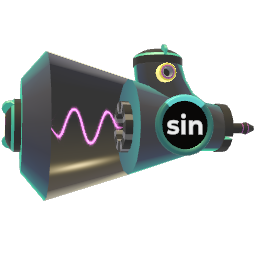 Oscillator — audio/LFO source