Connecting Patchworld to external devices and software opens up new ways to perform, sequence, automate, and build. This page covers two kinds of external connection:
- Music and control data: use MIDI over Network or Open Sound Control (OSC) to connect DAWs, MIDI controllers, TouchOSC, Max/MSP, Pure Data, custom scripts, and other real-time tools.
- AI agent control: use Patchworld MCP to connect agents like Codex, Claude Code, Google Antigravity, or ChatGPT developer connectors so they can inspect and edit your running Patchworld scene. MCP is available in Patchworld version 77.3 and up.
¶ Method 1: MIDI over Network (Recommended for DAWs)
This method uses the official Patchworld Companion App to create a stable bridge between your headset and your computer.
¶ Prerequisites
- A Windows or Mac computer on the same local network as your headset.
- A DAW like Ableton Live.
- For Windows: loopMIDI to create virtual MIDI ports.
- For Mac: The built-in IAC Driver.
¶ Step-by-Step Guide
¶ 1. Setup Virtual MIDI Ports
On Windows:
- Install and run
loopMIDI. - Create at least two new virtual MIDI ports by typing a name and clicking the
+button. Name them something clear, likePatchInandPatchOut.
On macOS:
- Open the Audio MIDI Setup application (found in
Applications/Utilities). - Go to
Window > Show MIDI Studio. - Double-click on the IAC Driver icon.
- Ensure the "Device is online" checkbox is ticked.
- In the "Ports" section, create at least two ports, e.g.,
Bus 1andBus 2.
¶ 2. Configure the Patchworld Companion App
- Important: Launch Patchworld on your headset first.
- Open the Patchworld Companion App on your computer (Download if needed)
- The app should automatically detect your headset's IP address. Select it from the dropdown.
- Select your newly created virtual MIDI ports for both Input and Output. For example, select
PatchInfor input andPatchOutfor output.
¶ 3. Configure Your DAW (Ableton Live Example)
- Go to
Preferences > Link / Tempo / MIDI. - In the MIDI section, find your virtual ports (
PatchIn/PatchOutorIAC Bus 1/IAC Bus 2). - Enable Track and Remote for both the input and output ports.
¶ 4. Setup in Patchworld
Use the dedicated MIDI blocks found in the Connectors category of the Library:
| Block | Thumbnail | Description |
|---|---|---|
| Midi Keys | 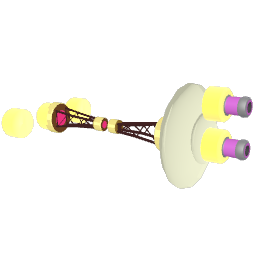 |
Send/receive polyphonic note messages. |
| Midi CC | 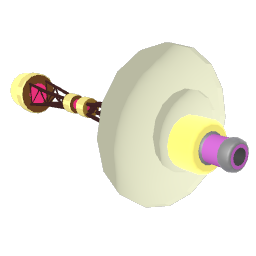 |
Send/receive Control Change messages. Set the CC number in the Inspector. |
| Midi Key | 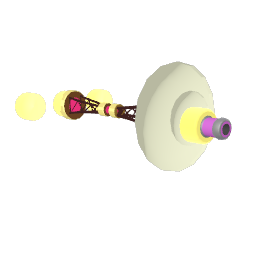 |
Send/receive a single, specific MIDI note. |
You can now send MIDI from your DAW to Patchworld instruments or send signals from Patchworld to control your DAW.
¶ Method 2: Open Sound Control (OSC) - Advanced
This method provides a more direct, but manual, way to send and receive data. It's useful for connecting to software like TouchOSC, Pure Data, Max/MSP, or custom Python scripts.
¶ Core Concepts
OSC communication relies on three things being correctly configured on both ends:
- IP Address: The network address of the device you're sending data to.
- Port Number: The specific "channel" on that device to send data to.
- OSC Address: A text path that identifies the message (e.g.,
/ch1/note,/mixer/fader1).
¶ Patchworld OSC Setup
¶ 1. Initial Configuration (using the Execute block)
The OSC connection must be configured within your patch.
- Spawn an Execute block.
- To set the destination IP address, type
remote_ip [IP_ADDRESS](e.g.,remote_ip 192.168.1.10). - To set the incoming port, type
port_in [PORT_NUMBER](e.g.,port_in 3330). - To set the outgoing port, type
port_out [PORT_NUMBER](e.g.,port_out 5550). - Trigger these Execute blocks once with a Button or
onloadevent to set the configuration for the session. TheOSC Bridgedevice in the library does this for you.
¶ 2. Sending & Receiving Data
| Block | Thumbnail | Description |
|---|---|---|
| OSC Send | 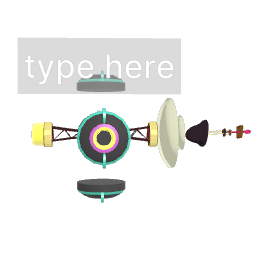 |
Sends an OSC message. Set the OSC address in the text field (e.g. /ch1cc1 :0). The jolt input sends the trigger and its value is available as :0. |
| OSC Receive | 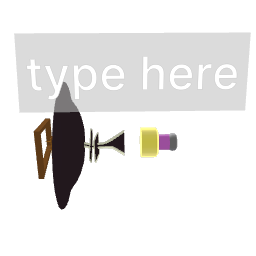 |
Receives an OSC message matching the configured address (e.g. /note1) and emits a jolt with the received value. |
¶ Example Use Case: Community OSC/MIDI Bridge
The community has developed solutions using a Python script and TouchOSC to create a powerful OSC-to-MIDI bridge.
- Software: A Python script (found on the PatchXR GitHub) acts as the intermediary. It listens for OSC messages from Patchworld and converts them to MIDI for your DAW, and vice-versa.
- TouchOSC: A mobile app that can be used as a flexible control surface, sending OSC messages directly to Patchworld over Wi-Fi. The community has created templates that map to specific OSC addresses.
- Typical Message Format: The community has established a convention for OSC addresses to handle MIDI data:
/ch1note: Note number for channel 1/ch1vel: Velocity for channel 1/ch1noteoff: Note off message/ch1cc1: CC message for controller #1 on channel 1/ch1pitch: Pitch bend for channel 1
¶ Method 3: Patchworld MCP for AI Agents
Patchworld MCP lets external AI agents inspect and modify your active Patchworld scene through natural language. It is available in Patchworld version 77.3 and up.
See Connecting Patchworld MCP to AI Agents for setup instructions.
¶ Wireless Jolt (Internal Wireless)
For routing jolts wirelessly within your patch — without any external software — use the wireless jolt blocks:
| Block | Thumbnail | Description |
|---|---|---|
| Send Jolt | 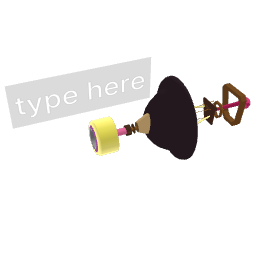 |
Broadcasts a jolt to all Receive Jolt blocks sharing the same channel name. |
| Receive Jolt | 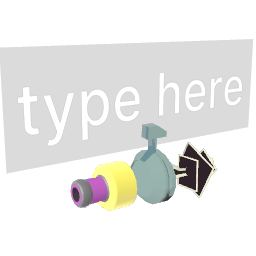 |
Receives a jolt from the matching Send Jolt block. |
These are ideal for connecting blocks across different groups or devices without drawing cables, and support multiplayer synchronization via the "Broadcast Multiplayer" inspector option on Send Jolt.
¶ Troubleshooting & Common Issues
- Connection Fails: Ensure your headset and computer are on the same Wi-Fi network. Disable any firewalls on your computer that might be blocking the connection. In the Ableton OSC Bridge, you may need to click "Scan" multiple times.
- Order of Operations: For the MIDI Companion App, always start Patchworld on the headset first, then launch the companion app on your computer.
- Latency: There is inherent latency, especially sending signals from an external source to Patchworld. Sending signals out of Patchworld is generally faster. The headset's internal audio has latency; consider adjusting the Buffer Size in Patchworld's settings for a trade-off between performance and latency.
- Note Hanging / Retriggering: When sending MIDI notes out of Patchworld, you must handle
note offevents. A common community solution is to send a jolt with a velocity of0to signifynote off. Inside a receiving patch, you can use an If Else block to filter out these0value jolts so they don't retrigger a sound. - Can't Find IP Address: On your headset, go to
Wi-Fi Settings, click on your connected network, and scroll down to find the IP address. On Windows, open Command Prompt and typeipconfig. On Mac, checkSystem Settings > Network.